
Live map overlay
See the current area in a transparent overlay centered on your character, with adjacent area previews where available.
Diablo II: Resurrected Windows x64
See the area around your character, compare walking and teleport routes, and highlight the loot you are looking for.
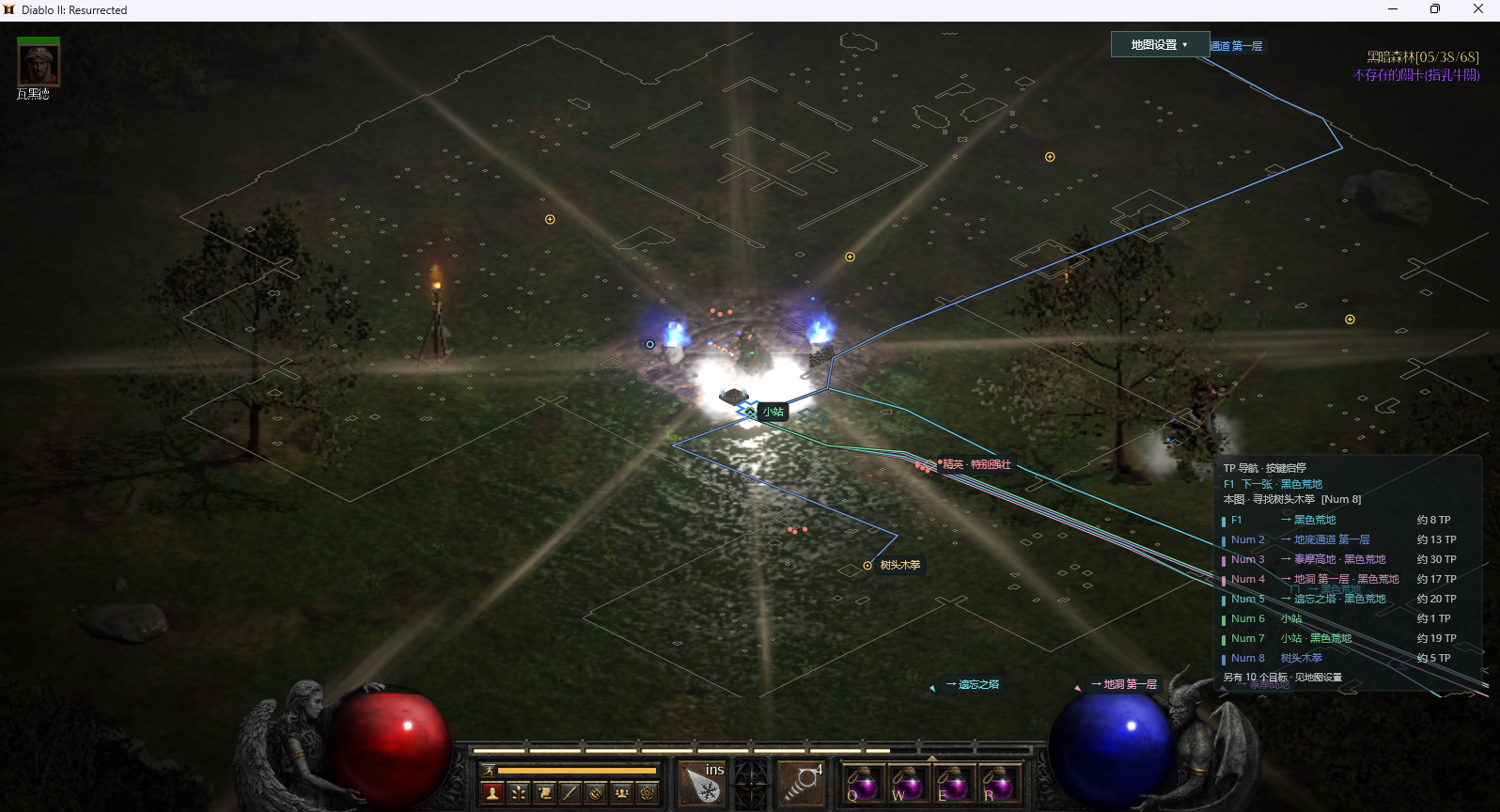
See the current area in a transparent overlay centered on your character, with adjacent area previews where available.
See walking paths and planned teleport landings for your destinations, with shortcuts and estimated travel distance or jump counts.
Find exits, waypoints, and experience and gem shrines. See quest landmarks such as Tal Rasha’s true tomb and the staff receptacle.
Highlight drops by item name, quality, sockets, identification, or rune range. Import supported Pickit rules or start with the high-value preset.
Show nearby monsters, elite markers, and monster modifiers using separate display controls.
Adjust opacity for walls, routes, and the destination list. Choose which layers to show and switch between English and Simplified Chinese.
In this gameplay capture, destination routes are drawn over the map. The list at the lower right shows available targets, shortcut keys, and estimated teleport counts.
View full-size screenshot
A license activates one Windows PC. Its term starts at first activation.
Prices and PayPal checkout will appear when sales open.
Get the Windows x64 release and activate it with your license key.
Extract the package and keep its files together. Open D2Route.exe from that folder.
Release download pending.
Download for WindowsPaste your activation key in the app. D2Route checks the license online while it runs.
Choose your display language and review the overlay settings. If you have a classic Diablo II installation, select its folder for additional waypoint and entrance markers.
Open Map Settings in D2Route to set the language, adjust opacity, or show and hide map layers.
The license term starts when your key is first activated. The Windows app verifies its status with the license service.
Choose Open Logs Folder in the main D2Route window to find diagnostics.log when investigating a missing map or overlay.